
Description
Master Your AI Commerce Future with IKAROS
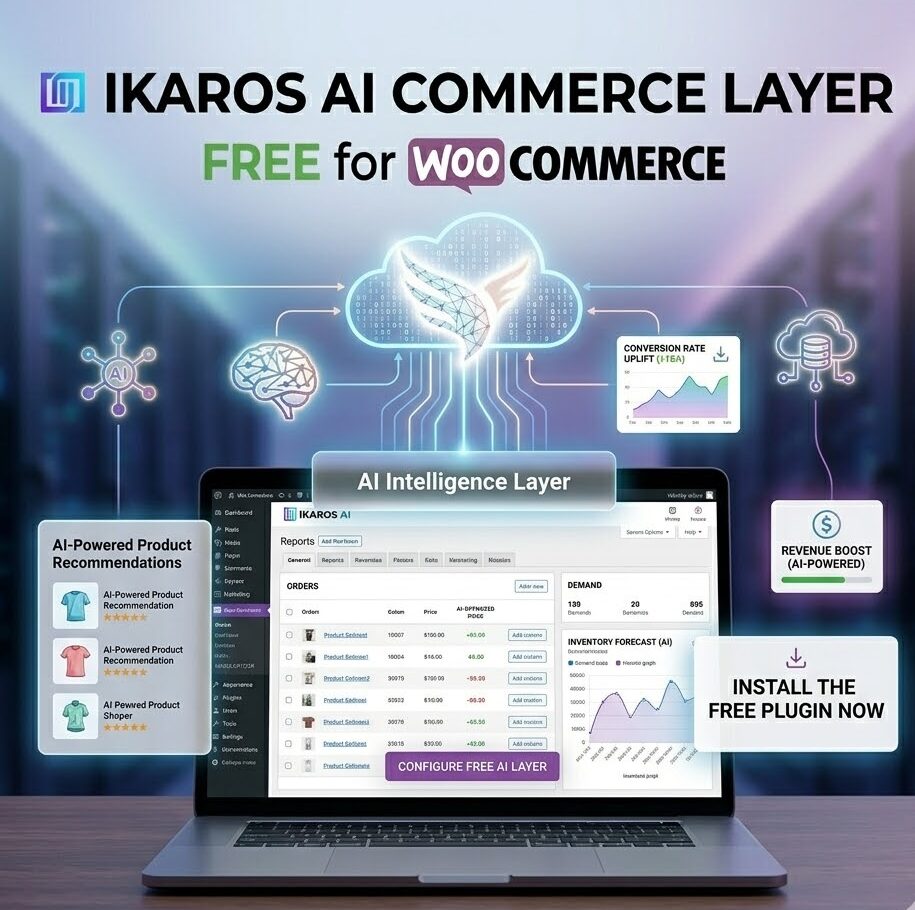
In an era where AI agents and shopping assistants are becoming primary discovery channels, IKAROS is the infrastructure layer your WooCommerce store needs to thrive. Stop hiding from AI—actively prepare your products to be discovered and recommended by artificial intelligence.
What is IKAROS?
IKAROS is a free, open-source WooCommerce plugin that transforms your store into an AI-ready commerce platform. It generates machine-readable product data, serves discovery endpoints, and provides comprehensive insights into how AI bots and crawlers interact with your content. Whether you’re optimizing for AI shopping agents, search engine crawlers, or future agentic protocols, IKAROS bridges the gap between traditional e-commerce and the AI-native internet.
Core Features
🤖 AI Commerce Manifest
Generate structured, machine-readable product data (AI commerce manifests) that help AI assistants understand your catalog. These manifests expose product details in formats that AI systems can parse and act upon automatically.
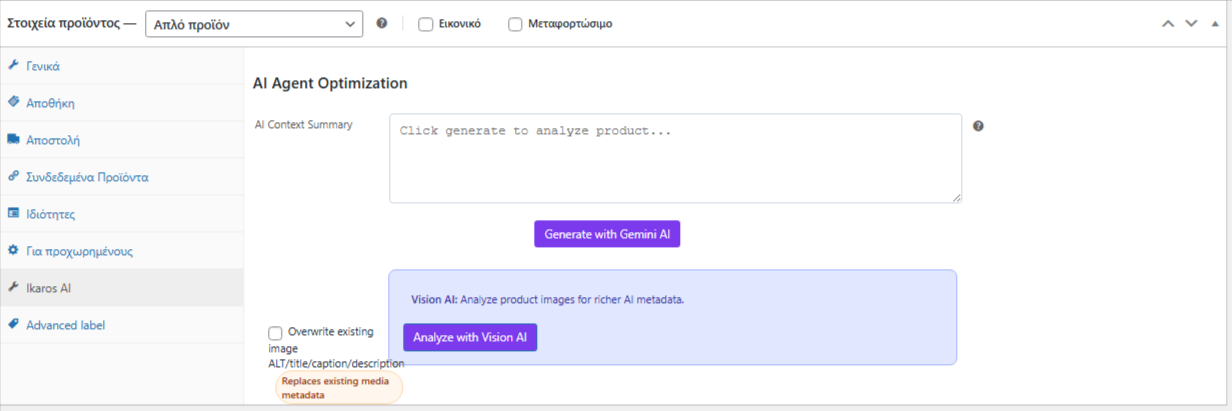
✨ AI Product Optimization
Create AI-friendly product summaries powered by Google Gemini API. Generate concise, compelling descriptions optimized for AI comprehension—turning verbose product descriptions into snappy summaries that AI agents can quickly parse and use to make recommendations.
📊 AI Bot Analytics Dashboard
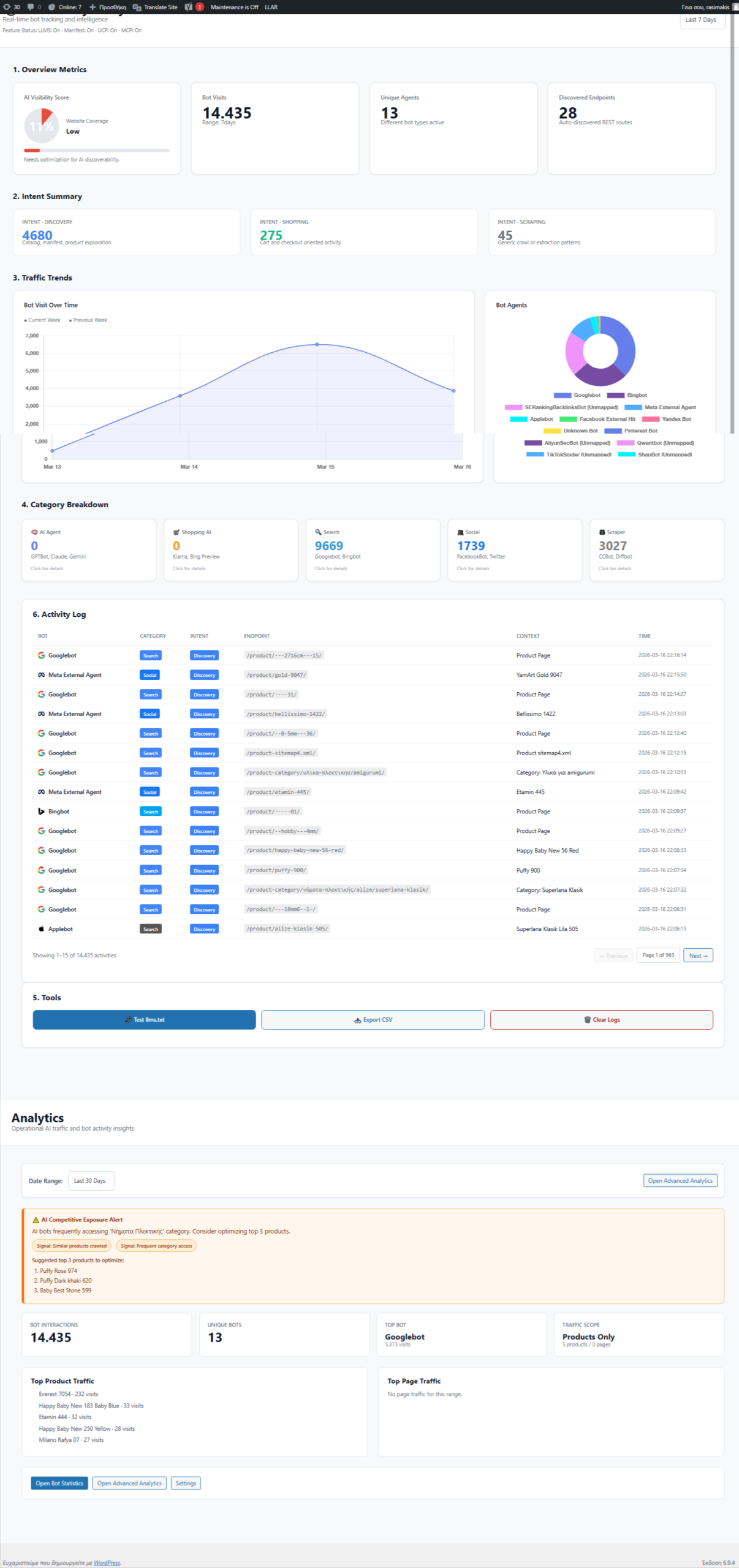
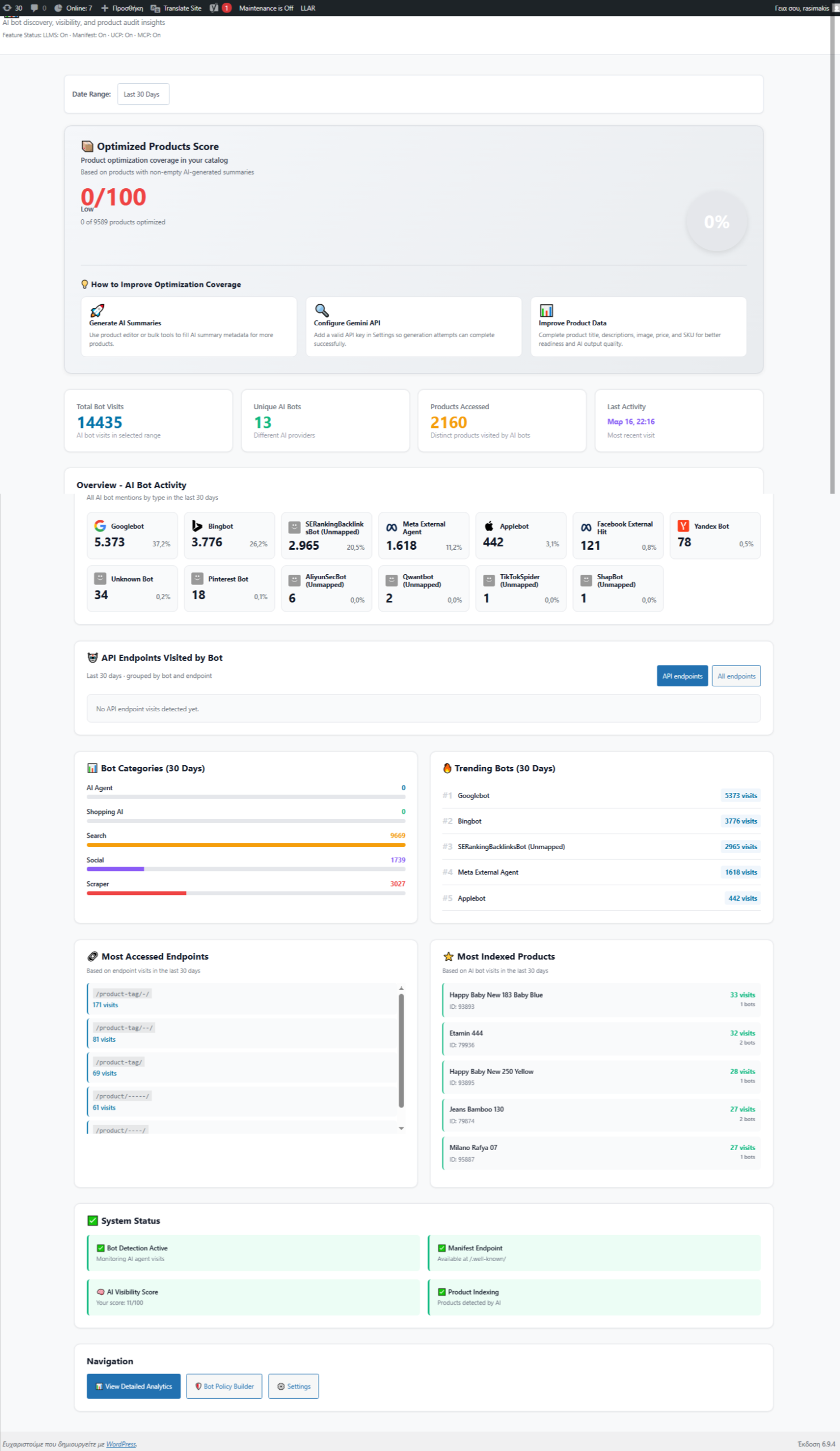
Gain complete visibility into AI traffic. Track which bots visit your store (GPT, Claude, Gemini, Perplexity, and others), what products they’re interested in, and how they’re engaging. Monitor API endpoint usage, bot intent classification (shopping vs. discovery), and engagement trends across your entire catalog.
🔍 AI Visibility Score
Understand how discoverable your products are to AI systems. IKAROS calculates a real-time AI Visibility Score based on:
- Bot activity and visit patterns
- Product coverage and optimization
- Content quality and descriptions
- Crawl frequency and depth
Watch your score improve as you optimize your store for AI.
🛡️ AI Policy Control
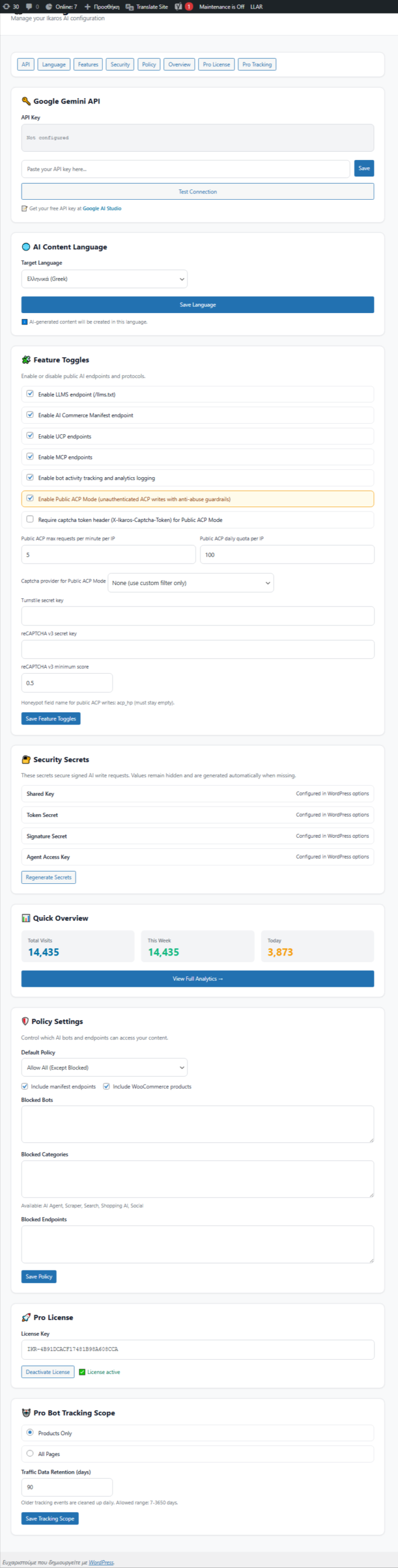
Take control. Decide which AI bots and crawlers can access your products. Create allowlists/blocklists for specific AI services, control rate limits, and enforce security policies. Protect against abuse while enabling legitimate AI commerce partnerships.
📝 LLMS.txt & Discovery Endpoints
Support modern AI discovery standards including the llms.txt standard and agentic protocol discovery. Expose capabilities and commerce endpoints through REST APIs that AI agents can discover and invoke.
🔐 Security & Rate Limiting
Enterprise-grade security features including:
- Signed request verification with timestamp freshness checks
- Replay protection and write authorization
- Per-minute and per-day IP-based rate limiting
- Optional Cloudflare Turnstile or Google reCAPTCHA v3 integration
- Public ACP (Agentic Commerce Protocol) mode with honeypot protection
🛒 Agentic Checkout Sessions
Enable AI agents to complete purchases through your store. IKAROS provides REST API endpoints for creating, updating, and completing checkout sessions, letting AI shopping agents traverse your entire purchase flow programmatically.
🧭 Endpoint & Product Discovery
Automatic endpoint discovery and monitoring. See exactly which API routes AI bots are using and which products are attracting the most AI attention. Get granular insights into AI traffic patterns across categories, products, and endpoints.
🧠 Advanced Analytics
- Activity logs with shopping query parameters for attributed traffic
- Canonical product URL resolution for accurate tracking
- CSV export for external analysis
- Category and tag endpoint analytics
- Time-based filtering and trend analysis
How It Works
- Install & Activate – Deploy IKAROS on your WooCommerce store
- Configure – Enable features you want (bot tracking, manifest serving, product optimization)
- Optimize – Generate AI-friendly product descriptions using Gemini (optional API key)
- Monitor – Watch your AI Visibility Score and bot analytics in real-time
- Control – Set policies for which bots can access your data
- Scale – As AI agents generate more traffic, watch your attribution and recommendations grow
Who Should Use IKAROS?
- E-commerce stores that want to be discovered by AI shopping assistants
- B2B retailers preparing for agentic procurement platforms
- Marketplace operators enabling AI-native commerce
- Product teams needing visibility into how AI systems interact with their catalog
- Privacy-conscious merchants who want to control AI bot access
Free vs. Pro
IKAROS Free includes:
- ✅ AI Commerce Manifests
- ✅ Product optimization (use your own Gemini API key)
- ✅ Bot analytics and dashboards
- ✅ AI Visibility Score
- ✅ Policy controls
- ✅ llms.txt support
- ✅ Rate limiting and security
- ✅ Checkout session APIs
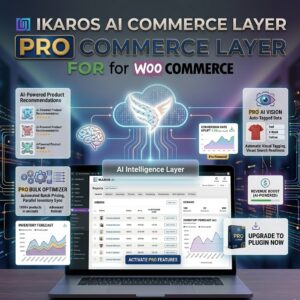
IKAROS Pro adds:
- ⚡ Bulk AI Optimization (optimize entire catalog at once)
- 👁️ Vision AI Descriptions (generate descriptions from product images)
- 📈 Advanced analytics and performance insights
- 🎯 Priority support
Privacy & Compliance
- No third-party tracking pixels injected on your frontend
- No JavaScript analytics by default
- Bot logging is disabled by default (opt-in)
- Transparent data collection with control
- Site owners control consent notices per local law
- Google Gemini API integration only when you click “Generate”
Requirements
- WordPress 6.0 or later
- PHP 7.4 or later
- WooCommerce active
- Optional: Google Gemini API key (for AI description generation)
Get Started Today
IKAROS is free, open-source, and ready to deploy. Turn your WooCommerce store into an AI-ready commerce platform and start attracting AI-driven traffic and recommendations. The AI internet is coming—prepare your store now.

Reviews
There are no reviews yet.